Plan
Investigate and review without changing files. Plan cannot run Shell, MCP or executable extensions; you choose when to proceed.
Connect. Work together.
Give a task in the IM you know. Let Artemis on your computer take it from there. Turn your methods into custom agents, then bring their strengths together with Agent Team and group collaboration.
Plan · Work · Codemode
Plan first, work directly, or coordinate tools with Codemode. Keep files, results and your decisions in the same workspace.
Investigate and review without changing files. Plan cannot run Shell, MCP or executable extensions; you choose when to proceed.
Edit files and run tools under the selected approval policy. Work is the default for new tasks.
Coordinate tools through scripts for multi-step work. Codemode follows the same permissions and approvals as Work.
Preview images, animated SVGs, audio, video, Mermaid and LaTeX. Interactive local HTML runs in isolation; Office and PDF cards open their side-panel viewers.
Preview and apply skin plugins, or restore the default. Supported skins can add light and dark wallpapers, muted video, fonts and icons, with reduced-motion support.
Review and explicitly trust command Hooks in Settings. They run in Work and Codemode; Plan skips them. Plugins, Skills and MCP remain together in the Resource Center.
Add isolated panels and tools through interactive plugins. The Design plugin provides document creation, version history, undo and restore when installed and available; project files require explicit import.
Office · DOCX / XLSX / PPTX / CSV
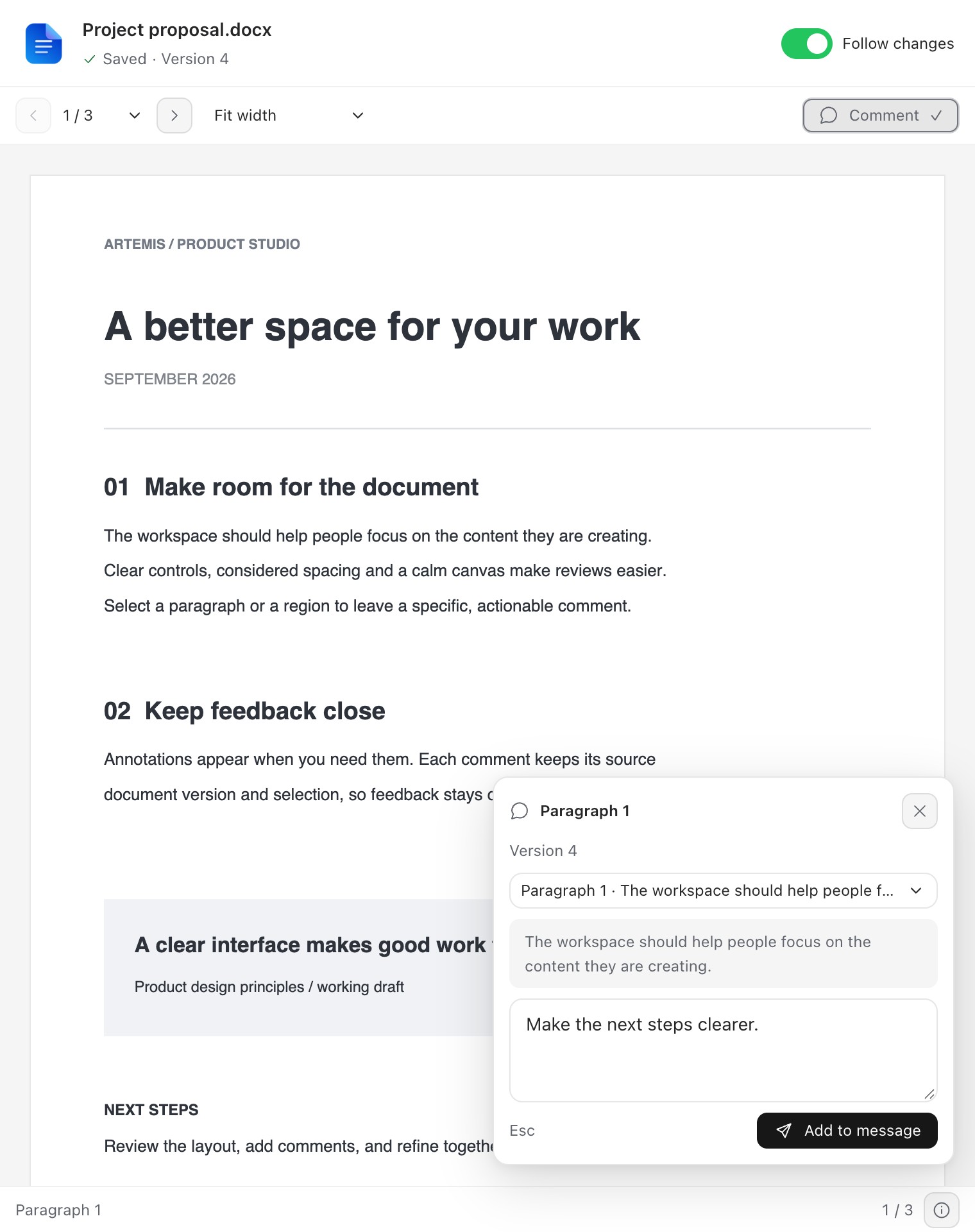
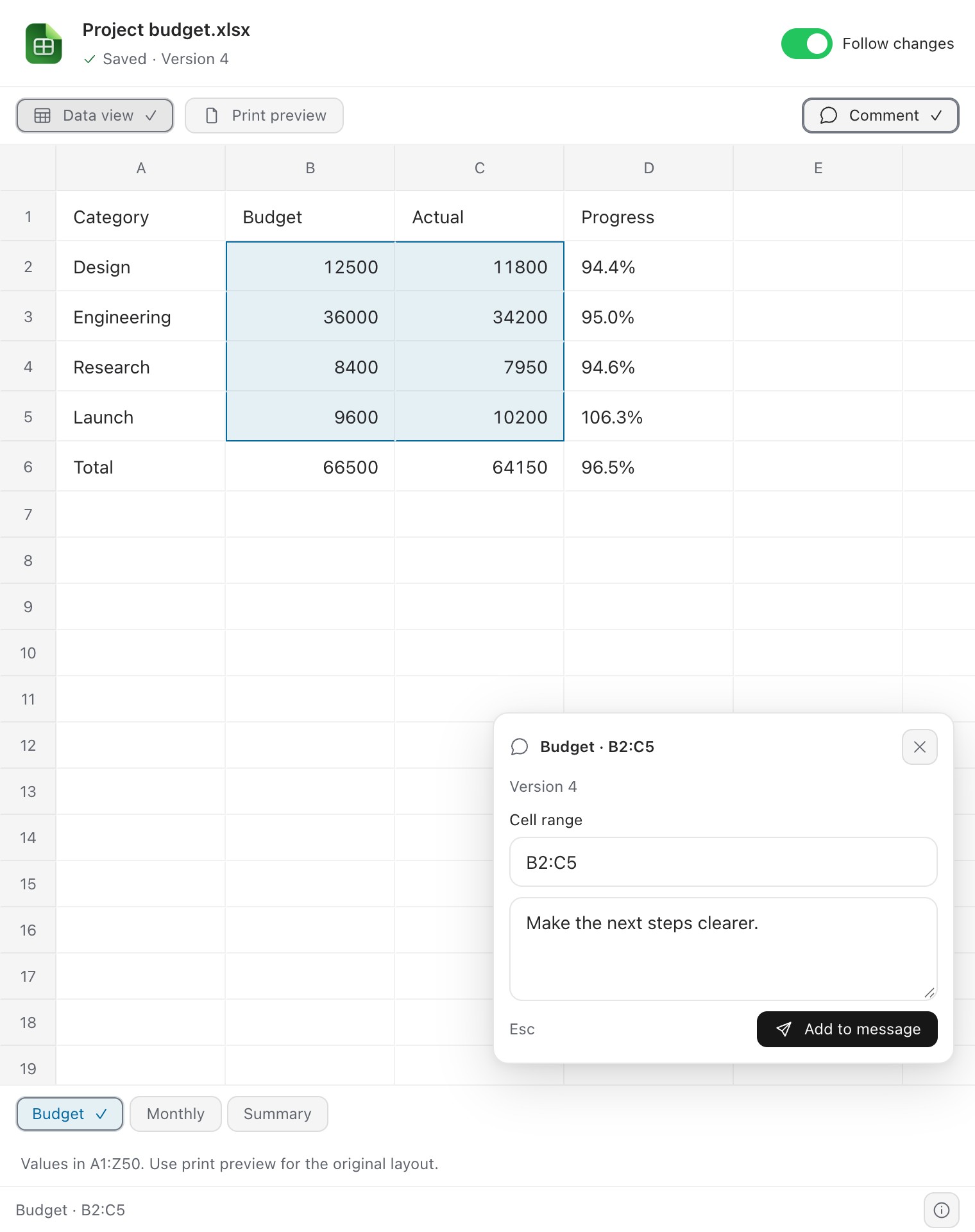
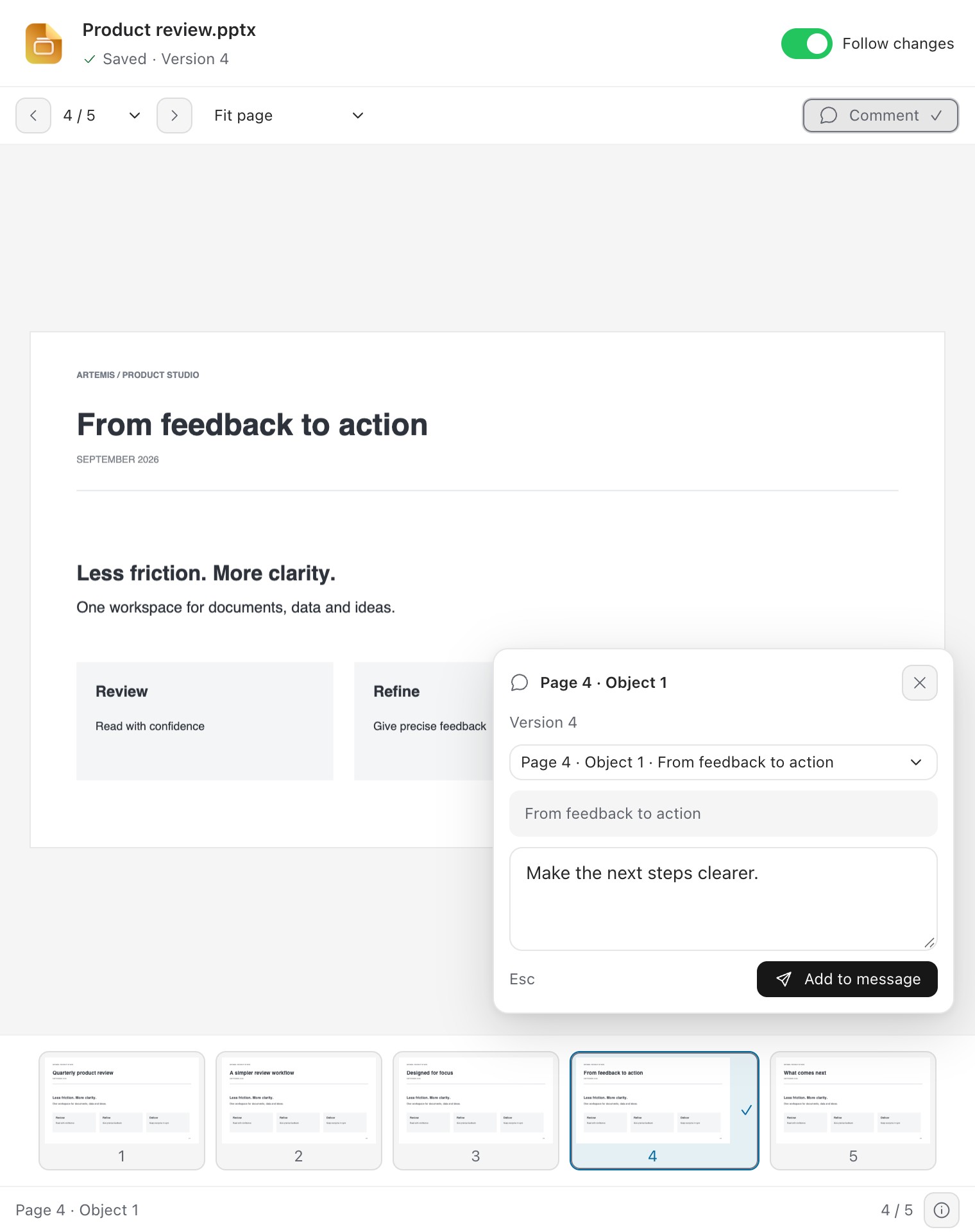
Preview, edit and annotate Word, Excel and PowerPoint files in the Office workbench. Manual edits run locally, with autosave and undo/redo.
Office preview requires the optional Office component to be installed and active. Basic document plugins are available separately.
Edit uniquely identifiable DOCX paragraphs and PPTX object text in place. Review pages with zoom and slide thumbnails.
Edit XLSX values and formulas within A1:Z50 on each sheet; switch between the grid and print preview. CSV supports cell and source editing and saves back to the UTF-8 original after conflict checks.
Select text targets, cells or a page region and add a note. The selection and document version accompany your feedback in the composer, ready for you to send.
In Documents, Presentations or Spreadsheets, choose Upgrade Office to install the shared optional component online or import a .artemis-office file. Available on macOS Apple Silicon and Windows x64; editing and saving require Work / Codemode mode.
Office files save to a working copy, preserving the original. External changes block conflicting saves. Editing covers supported text and cells, not full Office layout editing; complex formatting may differ.
Screenshots use demonstration data; their interface may differ from the current release.
Computer Use · Windows 11 / macOS 14+
Let Artemis fill forms, click controls and browse websites in the built-in browser, or work with native Windows and Mac apps.
Fill in this registration form in the browser, then let me review it.
Supports Windows 11 x64 and macOS 14+ on Apple silicon. Native apps on macOS require Accessibility and Screen Recording permissions.
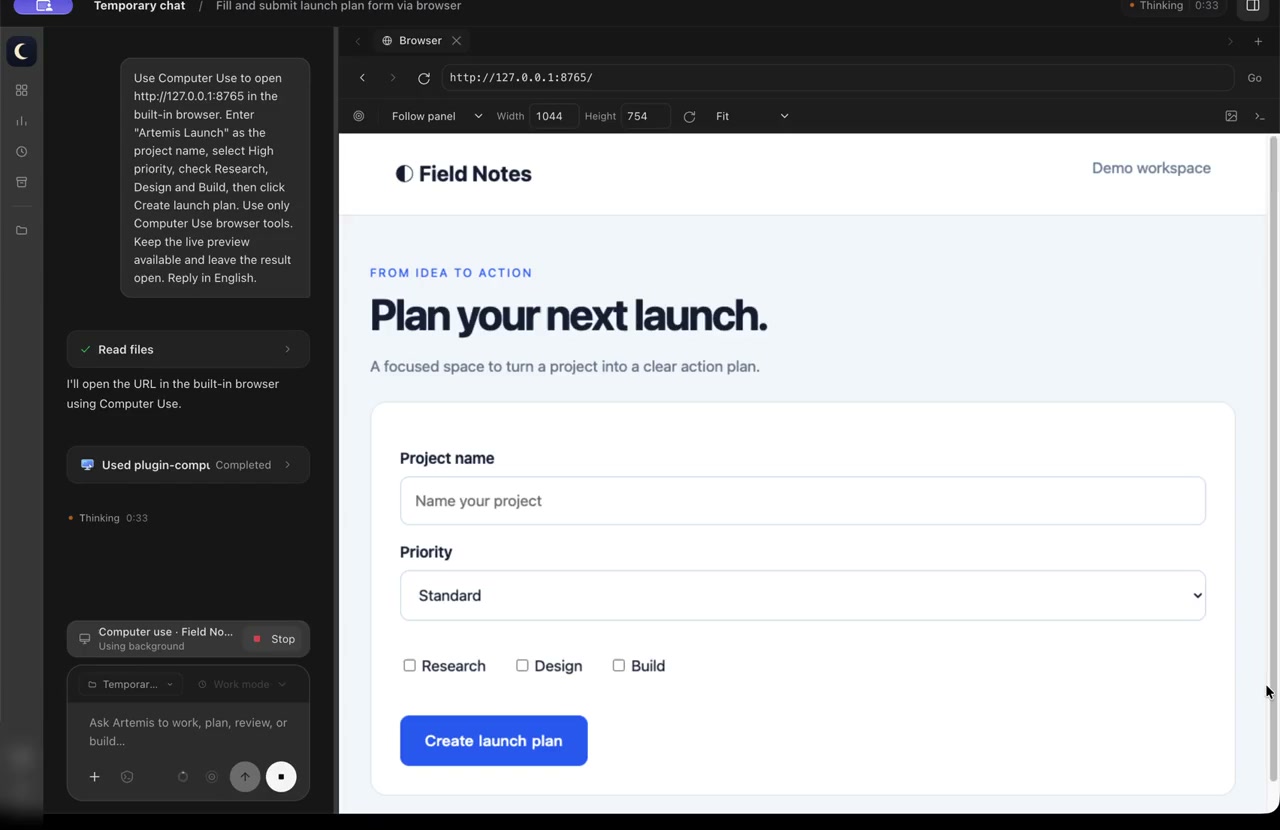
Browser actions · Live picture-in-picture
Recorded on macOS, cropped and sped up; the demo interface is in English.
Install Computer Use from bundled plugins in the resource center. In Work / Codemode, choose an image-capable model and describe the task. No extra model key is needed.
Approve access per app and stop at any time. Foreground control needs separate permission; saved app permissions can be revoked.
IM connections
Message your Artemis bot to work with projects and files, receive results, and follow up in the same conversation. Handle questions and your own approvals there too.
Keep your computer awake, Artemis open and the connection enabled to receive tasks.
From a message to local work
“Check the project and summarize today’s progress.”
Use the messaging tool you already know.
Use the projects, files and tools you have authorized.
Receive progress and results. Ask the next question.
IM group collaboration
In an existing Slack channel or Feishu / Lark group, each member connects their own bot and Artemis. Send work to the right person and the desktop capabilities they have chosen to share.
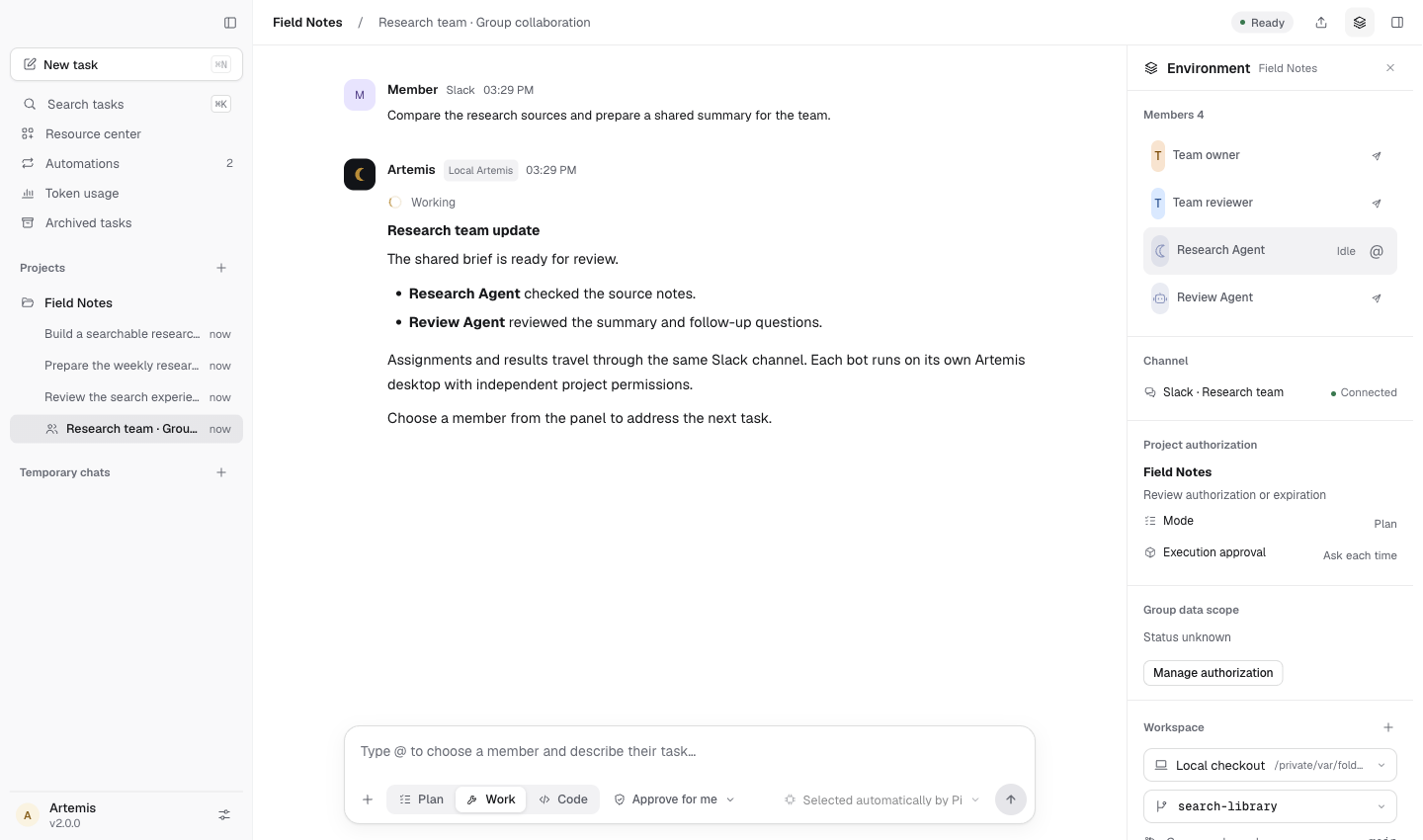
Mention their bot in the group, or assign a task to a group member from Artemis.
Each computer grants access to its own projects, folders, files and operations.
Delegated results return to the source group and mention the requester, ready for the next step.
Automatic delegation requires bot authorization and a verified round trip. People can also mention the next bot manually.
Custom agents
Create dedicated agents for research, review or writing. Define their responsibilities and deliverables once, then call on them across the projects you choose.
A few roles you could create
Organize sources and draw conclusions supported by evidence.
Check reasoning, find gaps and suggest concrete improvements.
One role can contribute to many different tasks.
Better when brought together
Custom agents bring expertise. Agent Team coordinates work on one computer. IM groups connect different members’ Artemis workspaces.
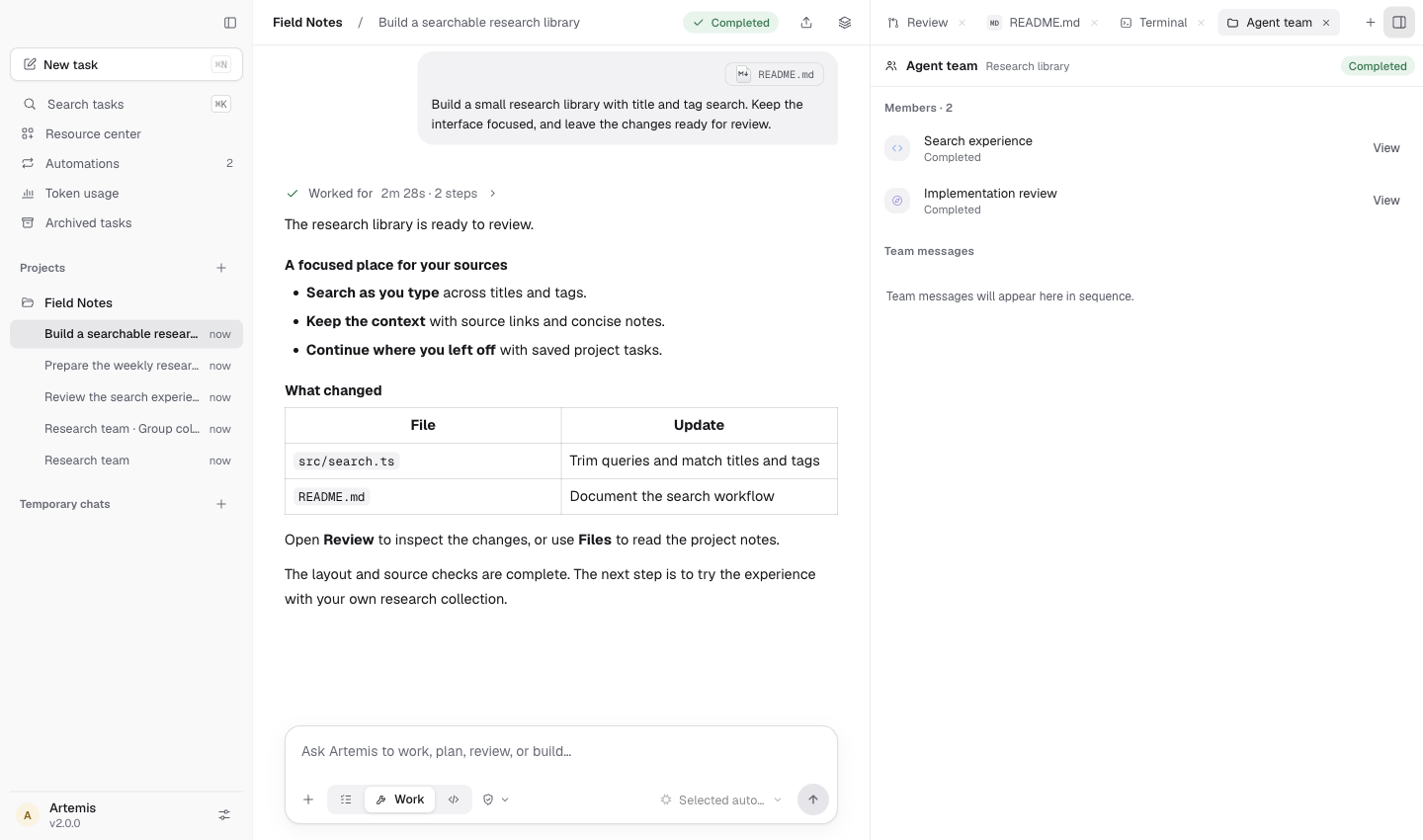
Split research and review into independent tasks for custom agents to work on in parallel. The main agent coordinates progress and brings the results together. Follow each role in the team panel.
Define the outcome for each part.
Use @ task blocks or automatic invocation you have enabled.
Follow assignments, status and messages in Agent Team.
Return each role’s findings to the current task.
Enable automatic invocation for local roles. When a group task reaches the member’s Artemis, its main agent can select those roles within the project’s scope. Each computer handles its part and returns results to the shared conversation.
Give a goal to an authorized bot.
Send the right part to that member’s Artemis.
The main agent calls available specialists and organizes its local team.
Combine the results, reply to the requester and continue together.
A complete desktop workspace
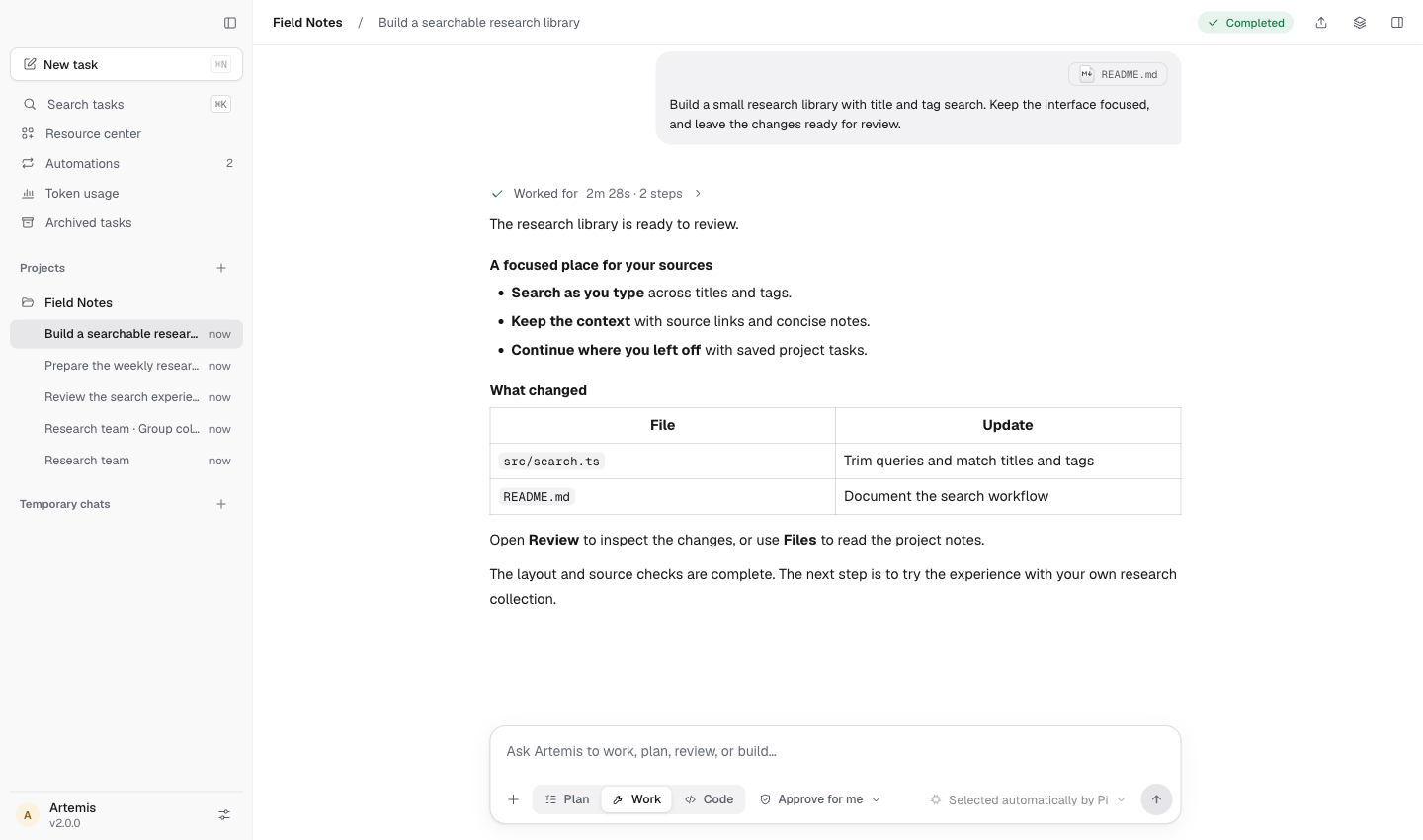
Projects & conversations
Keep projects, conversations and long-term goals together. Pick up the context and continue where you left off.
View full image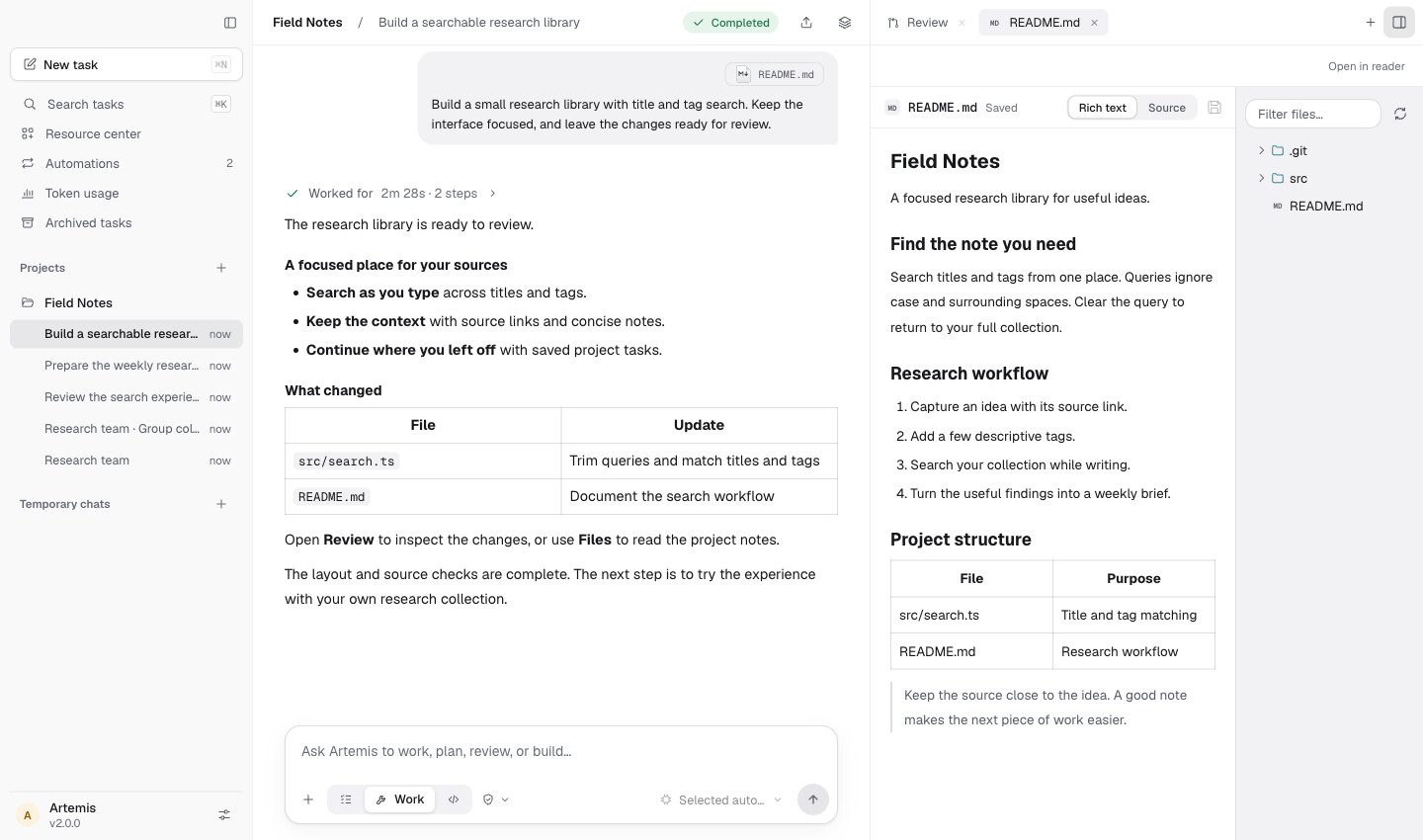
Files & documents
Read and edit files beside the conversation. Use built-in plugins for basic Word, Excel, PowerPoint and PDF content.
View full image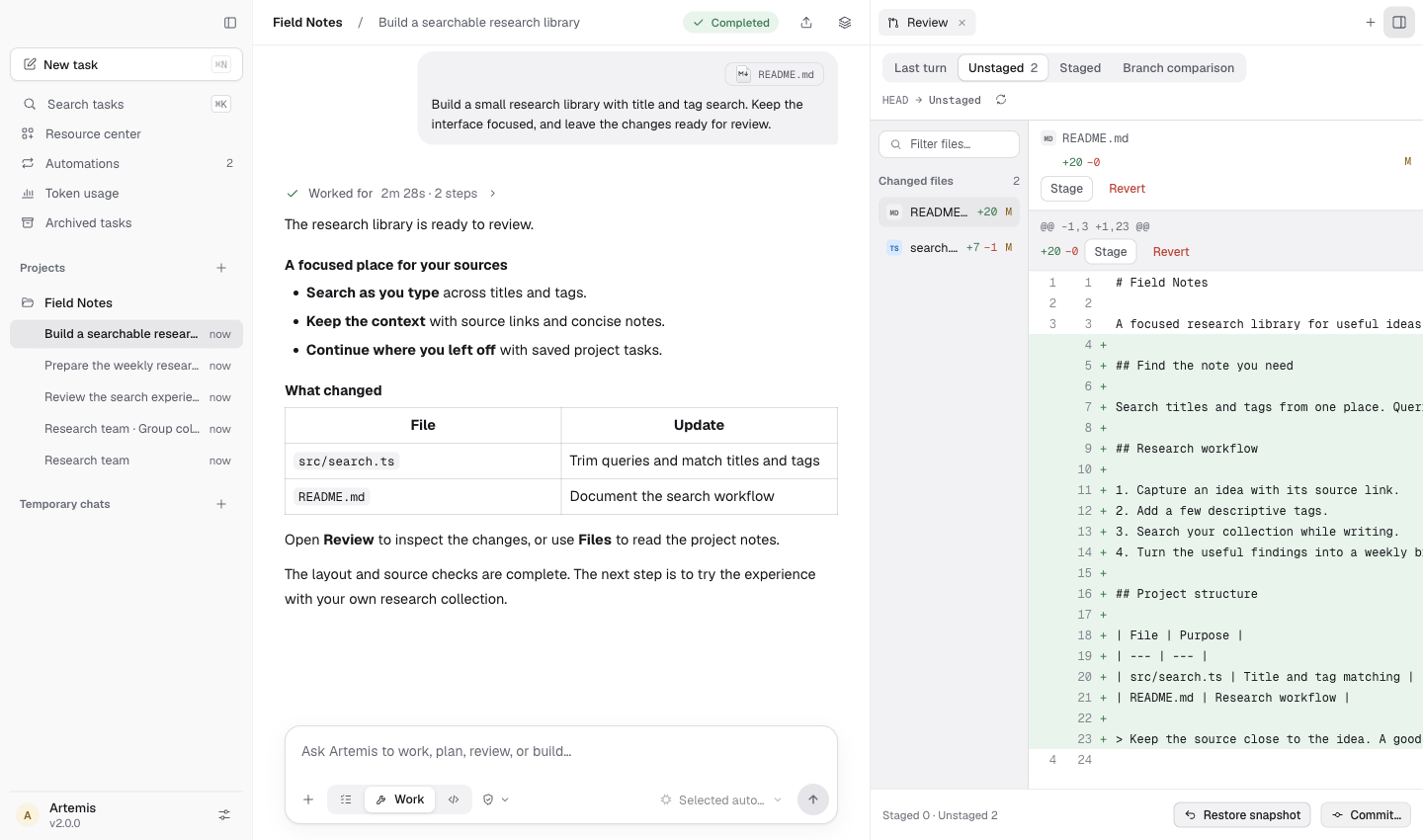
Code & review
Read the diff, leave comments and stage selected changes. Switch to a separate worktree when a task needs its own space.
View full image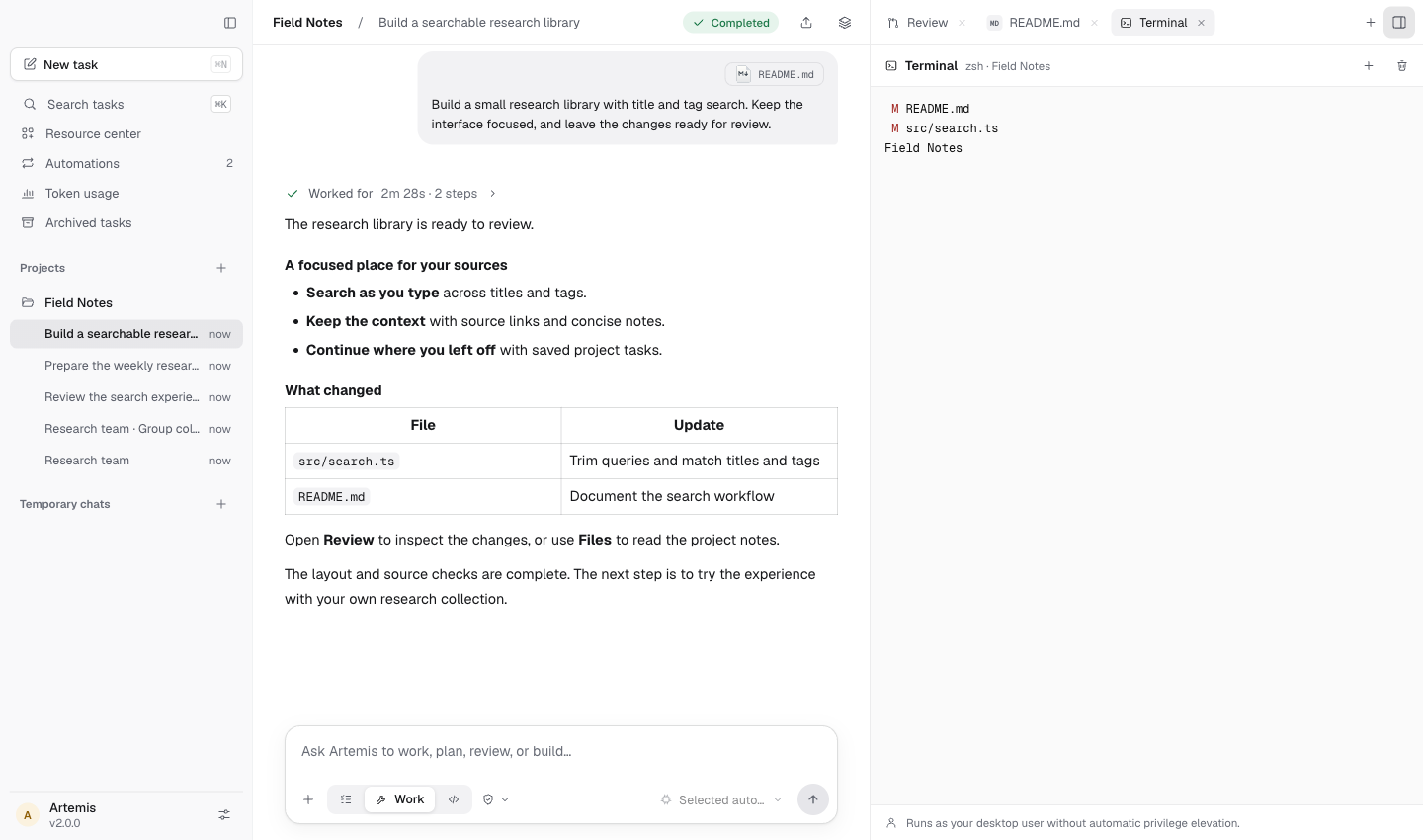
Terminal & browser
Run commands, open pages and inspect files beside the conversation. Keep the work and its checks in one place.
View full image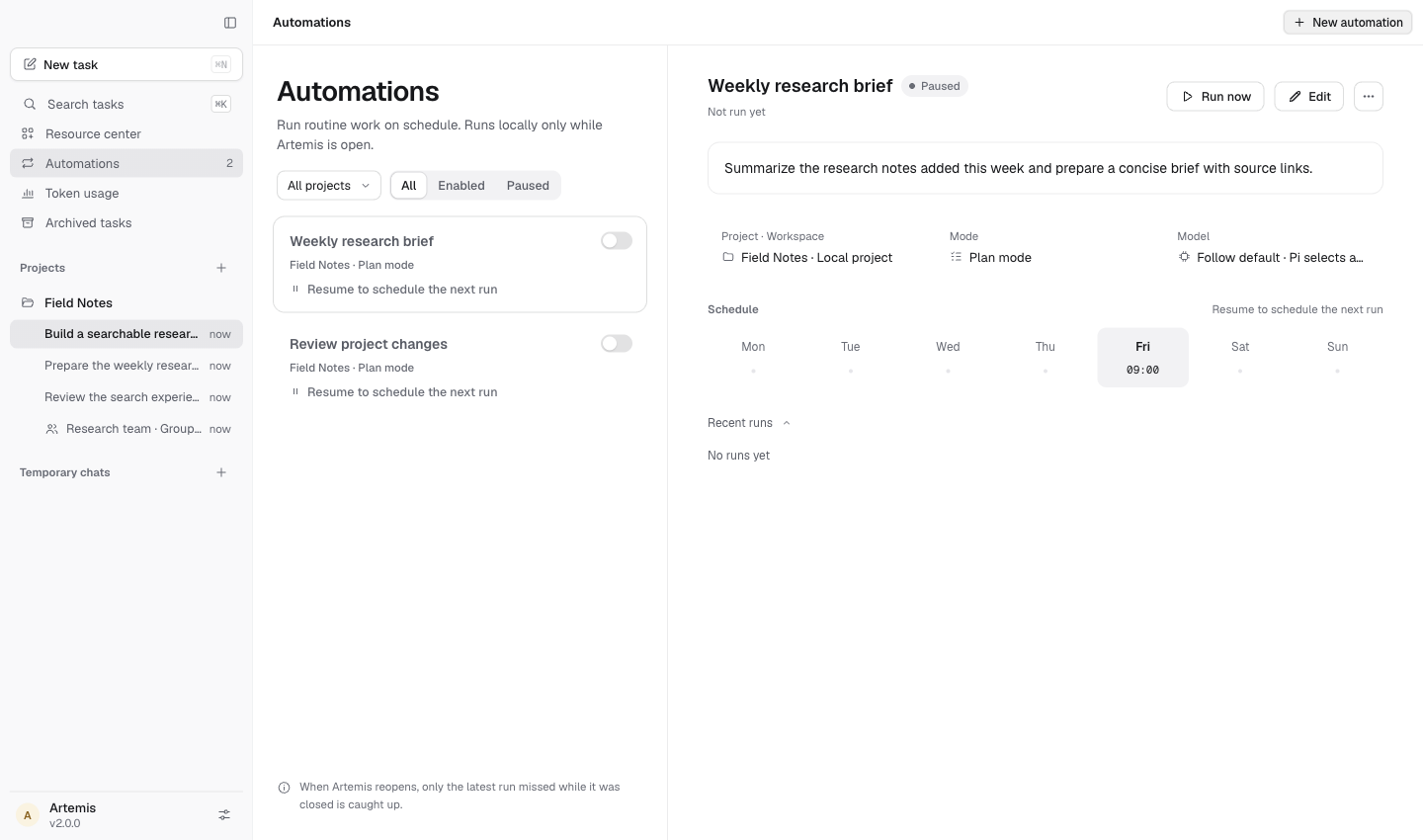
Automations
Schedule one-off or recurring work while Artemis is open. Execution tasks run with your authorization.
View full image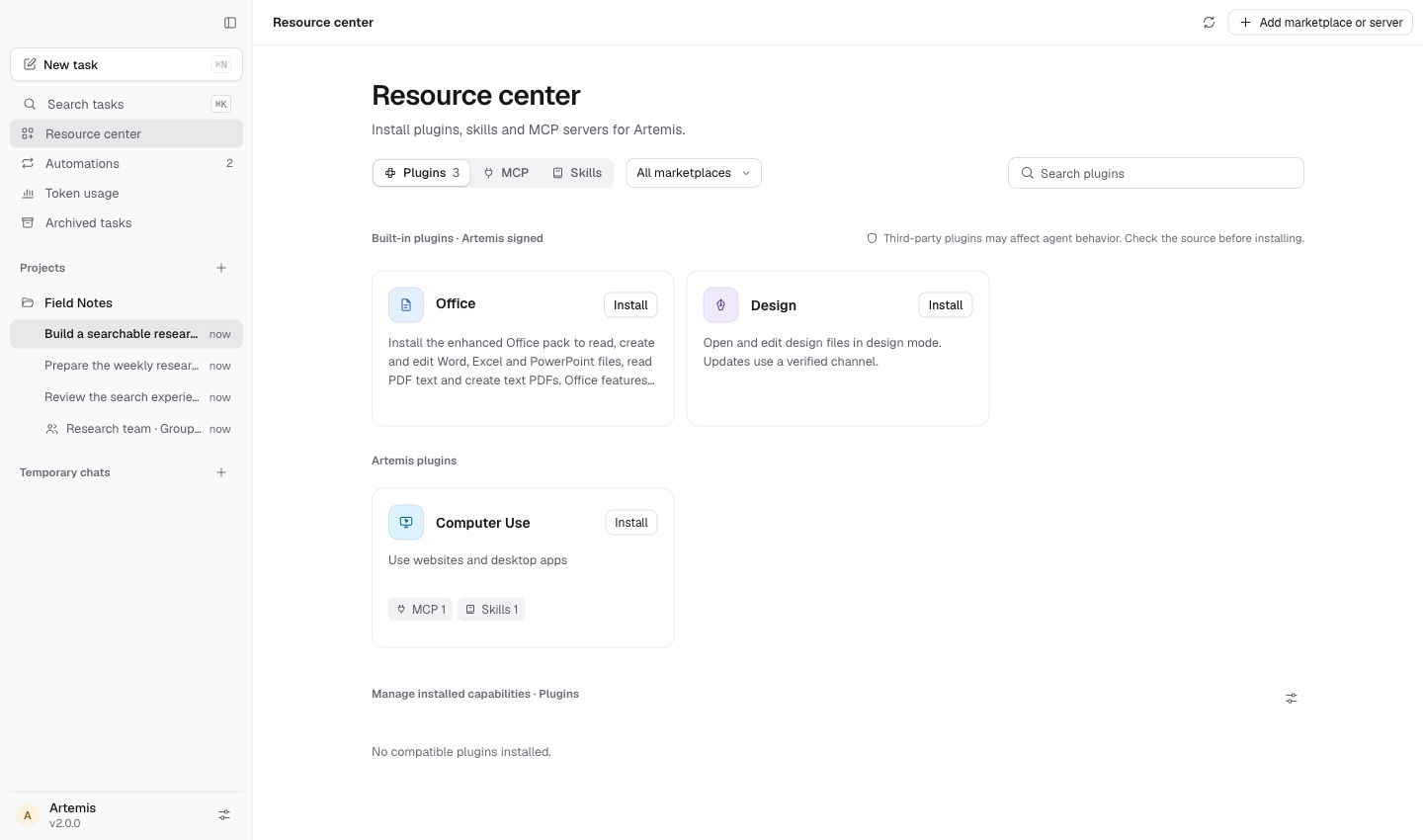
Plugins & connected services
Bring plugins, skills, connectors and MCP together. Connect accounts and add the tools your work needs.
View full image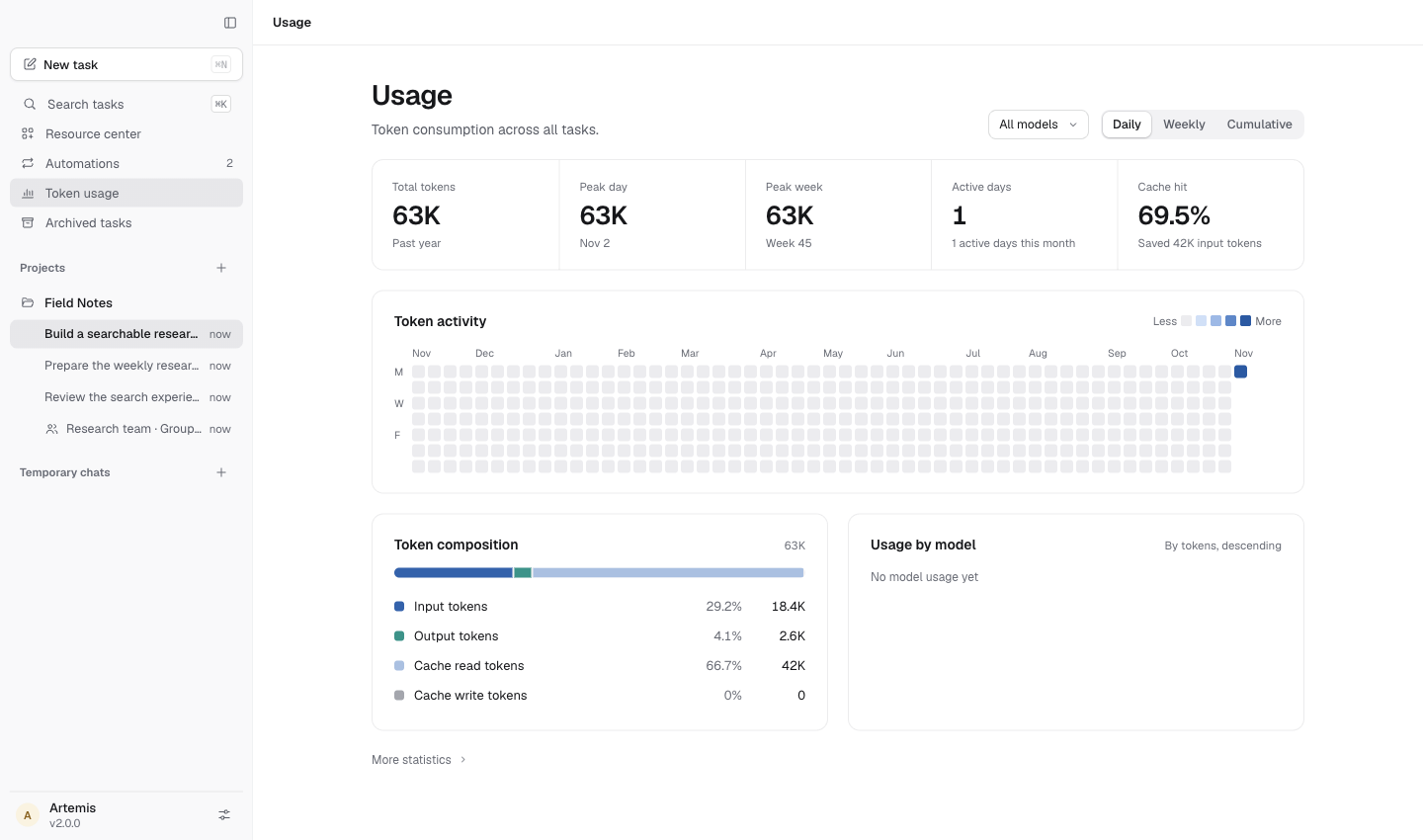
Models & usage
Choose a model for each conversation and see your token usage. Ultra adds deeper reasoning and parallel work, with greater usage.
View full image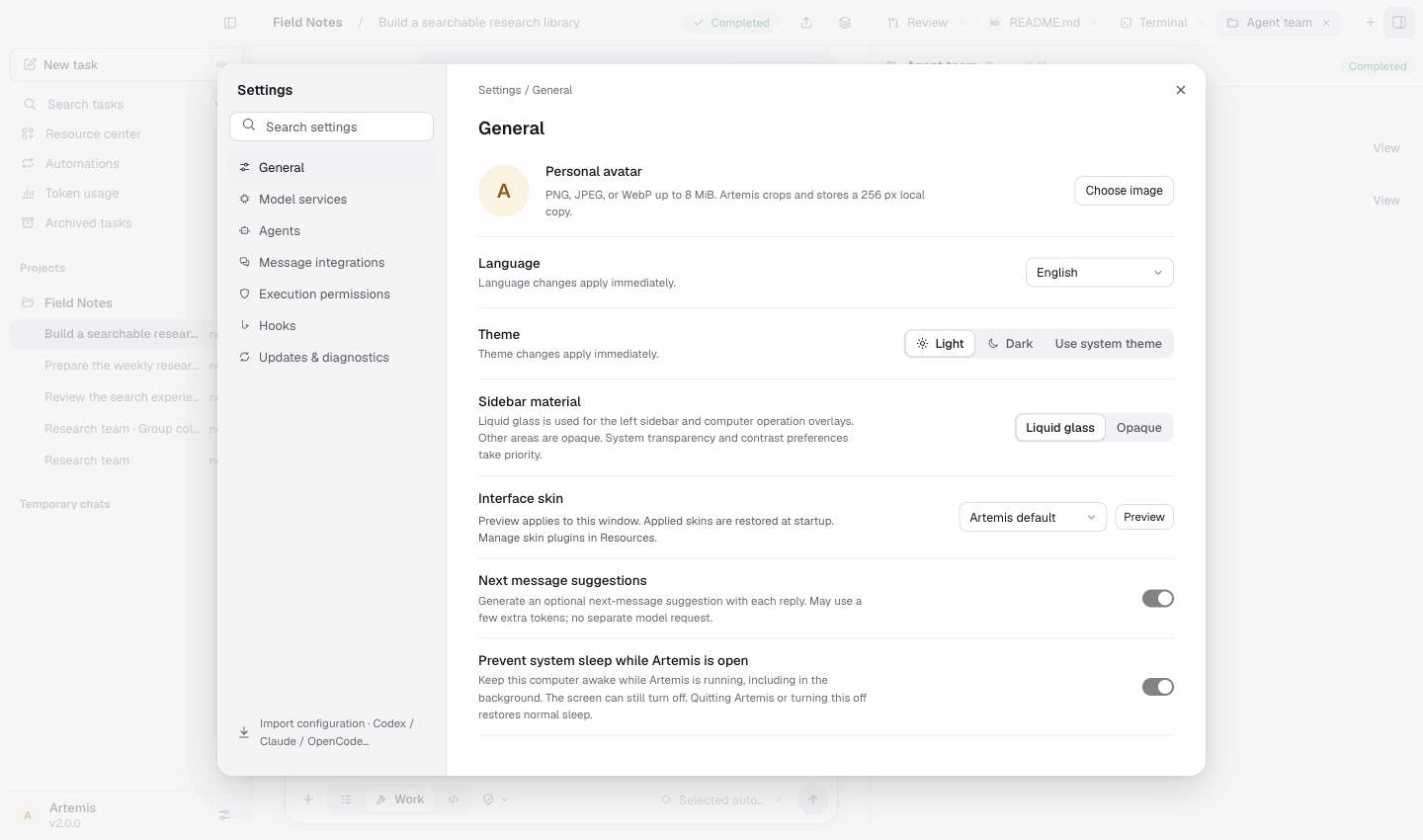
Memory & language
Keep useful project knowledge for next time. Work in 14 languages, with system language matching and right-to-left Arabic.
View full imageScreenshots use demonstration data; their interface may differ from the current release.
Motion previews are excerpts from the introduction film, using example data and an English interface.
Understand what stays local, what connects to a service, and what your chosen mode allows.